Checking in attendees
Last updated 20 August 2026
When guests arrive at your event, you can mark them as checked in to keep track of who's there.
Accessing the check-in screen
- Go to your host dashboard > Events
- Click on your event
- Click Check-in or go to the check-in tab
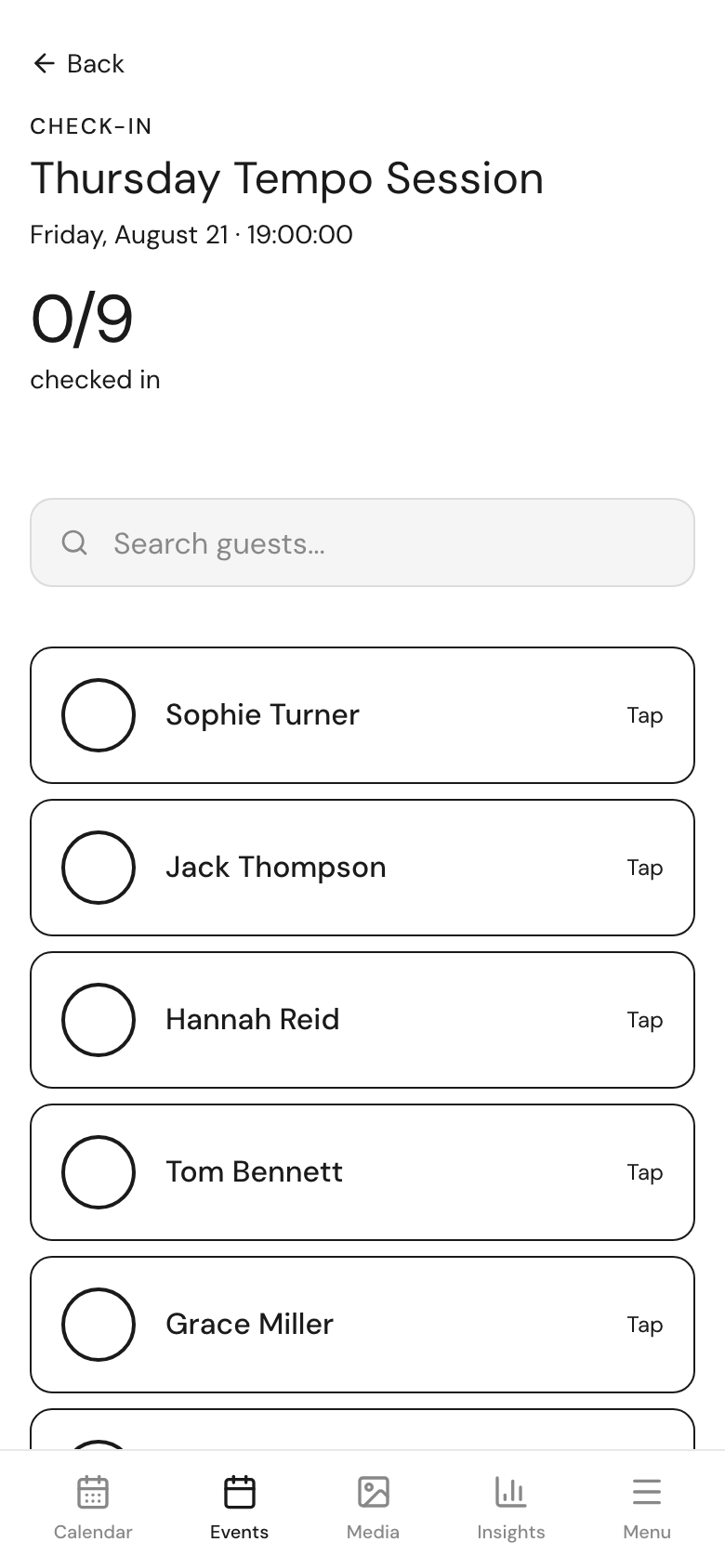
How check-in works
The check-in screen shows all your confirmed attendees. To check someone in:
- Search by name - Type the attendee's name in the search bar
- Find them in the list - Their name will appear
- Tap to check in - Click their name to mark them as arrived
A green checkmark indicates someone has been checked in.
At the door
When someone arrives:
- Ask for their name
- Search for them in the check-in list
- Tap to check them in
- Welcome them to your event!
Tips for smooth check-in
Before the event
- Review your guest list
- Know how many people to expect
- Have a backup device charged and ready
During check-in
- Keep the check-in screen open and ready
- Use the search to quickly find names
- Have good lighting to see your screen
Handling issues
- Name not found: Check for spelling variations or ask for the email they used
- Wrong event: Make sure you're viewing the correct event
- No ticket: They may need to register first
Checking in multiple tickets
If someone bought multiple tickets (e.g., bringing a friend):
- Their entry shows the number of tickets
- Check them in once to mark all tickets as arrived
Viewing check-in progress
The check-in screen shows:
- Total expected guests
- Number checked in
- Number still to arrive
Next steps
- Managing your guest list - View all attendees
- Approval mode - Control who can attend