
Importing events from Luma or Meetup
Last updated 2 October 2026
If your club already runs events on Luma or Meetup, you don't have to re-enter them. Paste your calendar link and Weeknights pulls in your upcoming events.
What you need
- Your Luma calendar URL (like
lu.ma/your-club) or your Meetup group URL (likemeetup.com/your-group) - The calendar or group must be public
Importing your events
- Go to Events in your host dashboard
- Click the import icon next to the + button
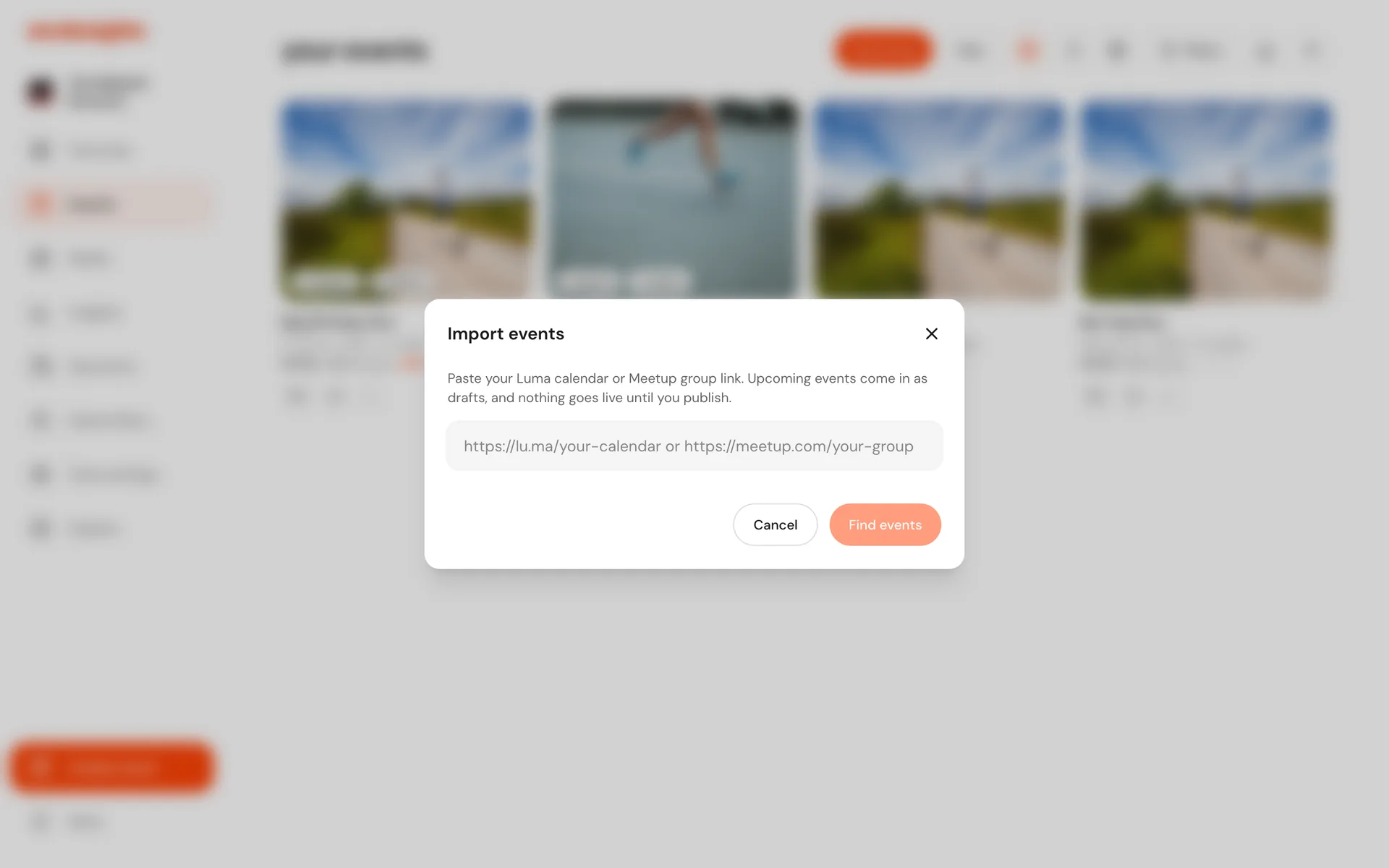
- Paste your Luma or Meetup link and click Find events
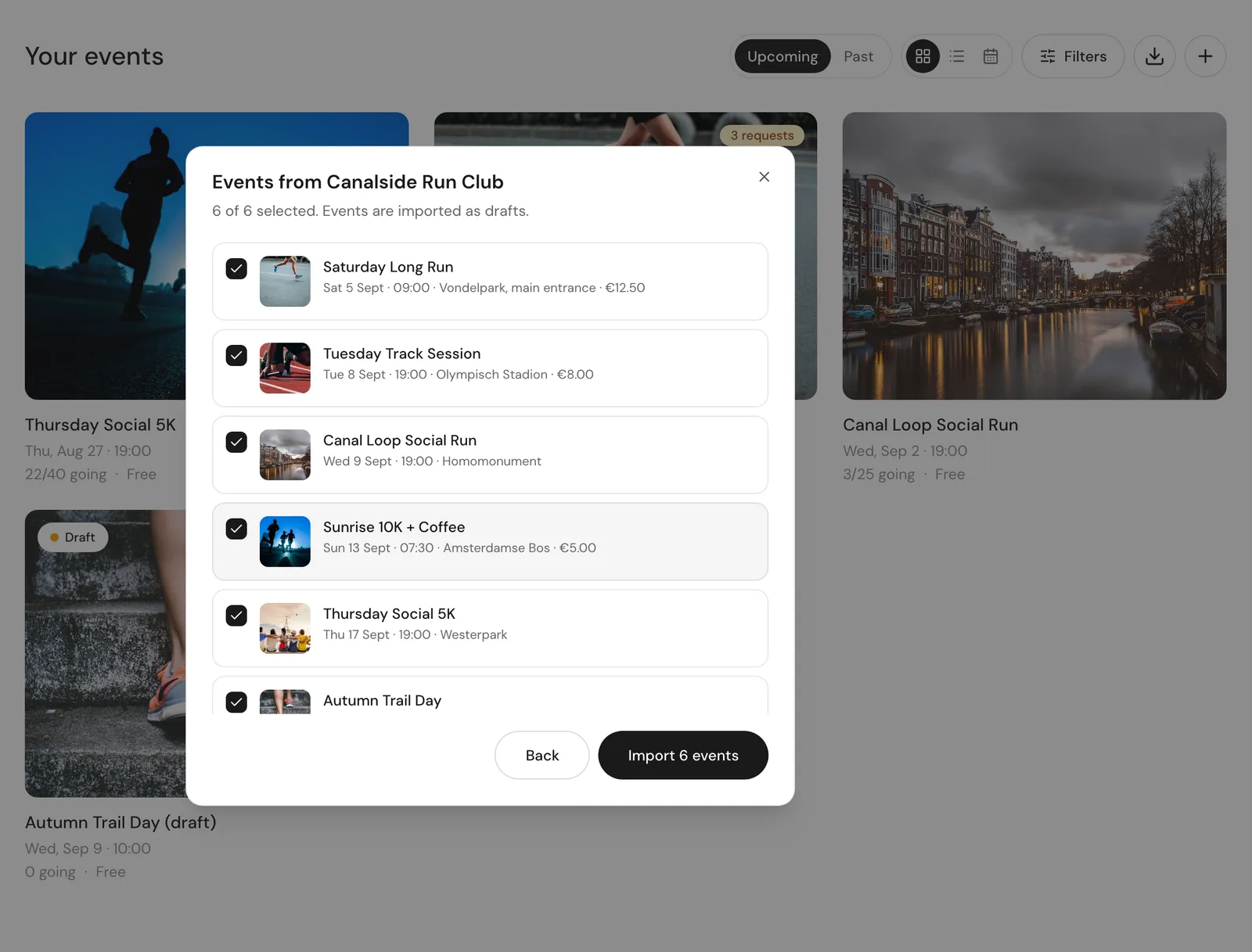
Weeknights scans the calendar and shows your upcoming events with their dates, venues, prices and cover images.
- Untick anything you don't want to bring over
- Click Import events. The button shows how many you have selected.
After importing
Everything arrives as a draft. Nothing is visible to members and no notifications are sent until you publish.
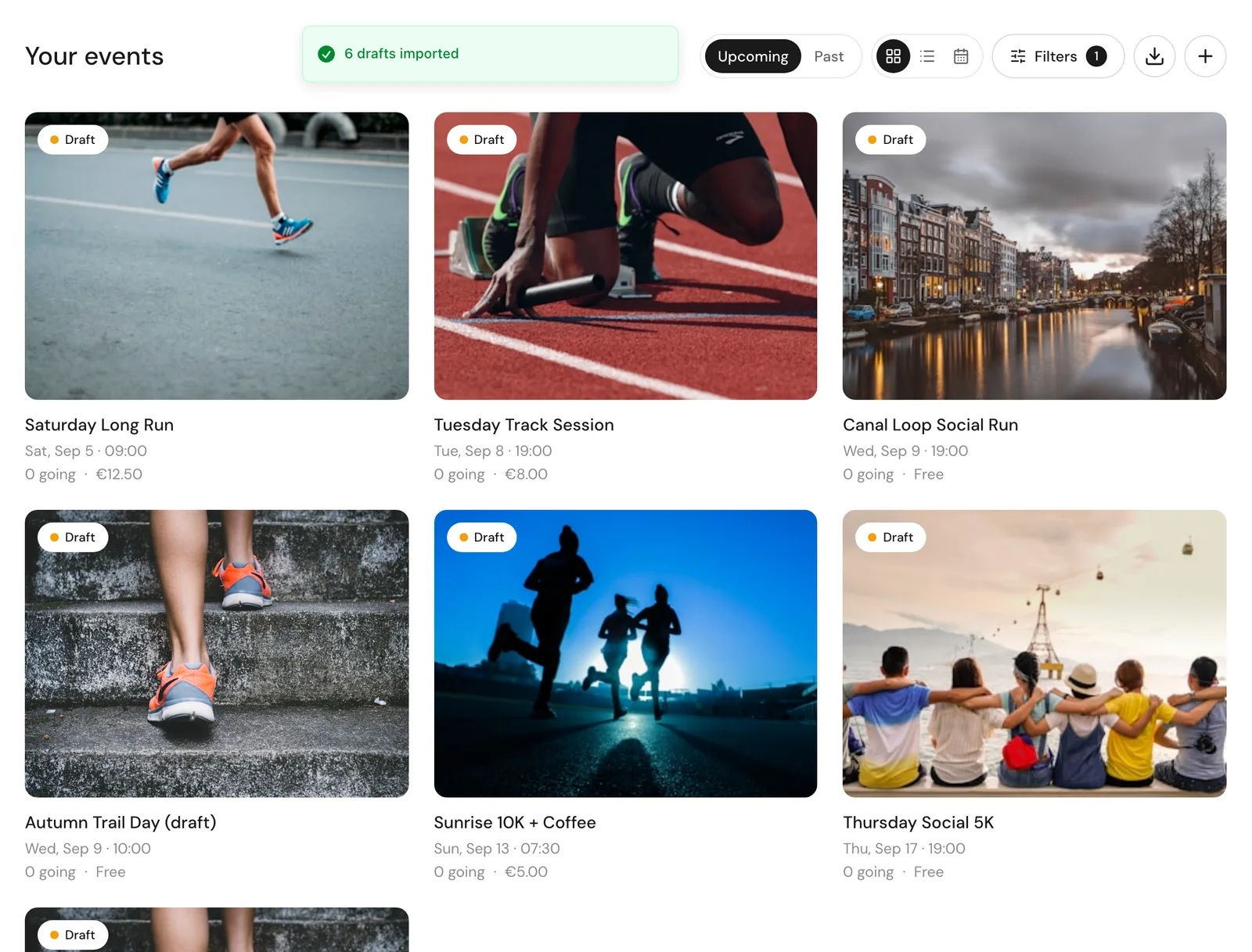
Open each draft to check the details, then publish it. Publishing notifies your subscribers, the same as creating an event normally.
We bring over as much as the source shares: title, date and time, description, venue, price and cover image. Some events show a warning when a detail couldn't be read. You can fill in anything missing on the draft before publishing.
Paid events
Prices are carried over. To publish a paid event you need Stripe connected so you can get paid. Free events publish without any setup.
Importing again later
Run the same import any time. Events you already imported are skipped, so you won't get duplicates. New events on your calendar come in as new drafts.
Troubleshooting
"Couldn't find events at that link" Your calendar is probably private. In Luma, open your calendar, click Subscribe and paste the ICS link instead.
"No upcoming events found" Only future events are imported. Past events stay where they are.
An event imported without a price Weeknights supports EUR, USD and GBP. Prices in other currencies are left off, you can set a price on the draft.