Creating an event
Last updated 20 August 2026
Ready to host your first event? Here's everything you need to know.
Getting started
- Go to your host dashboard
- Click Create Event or go to Events > New Event
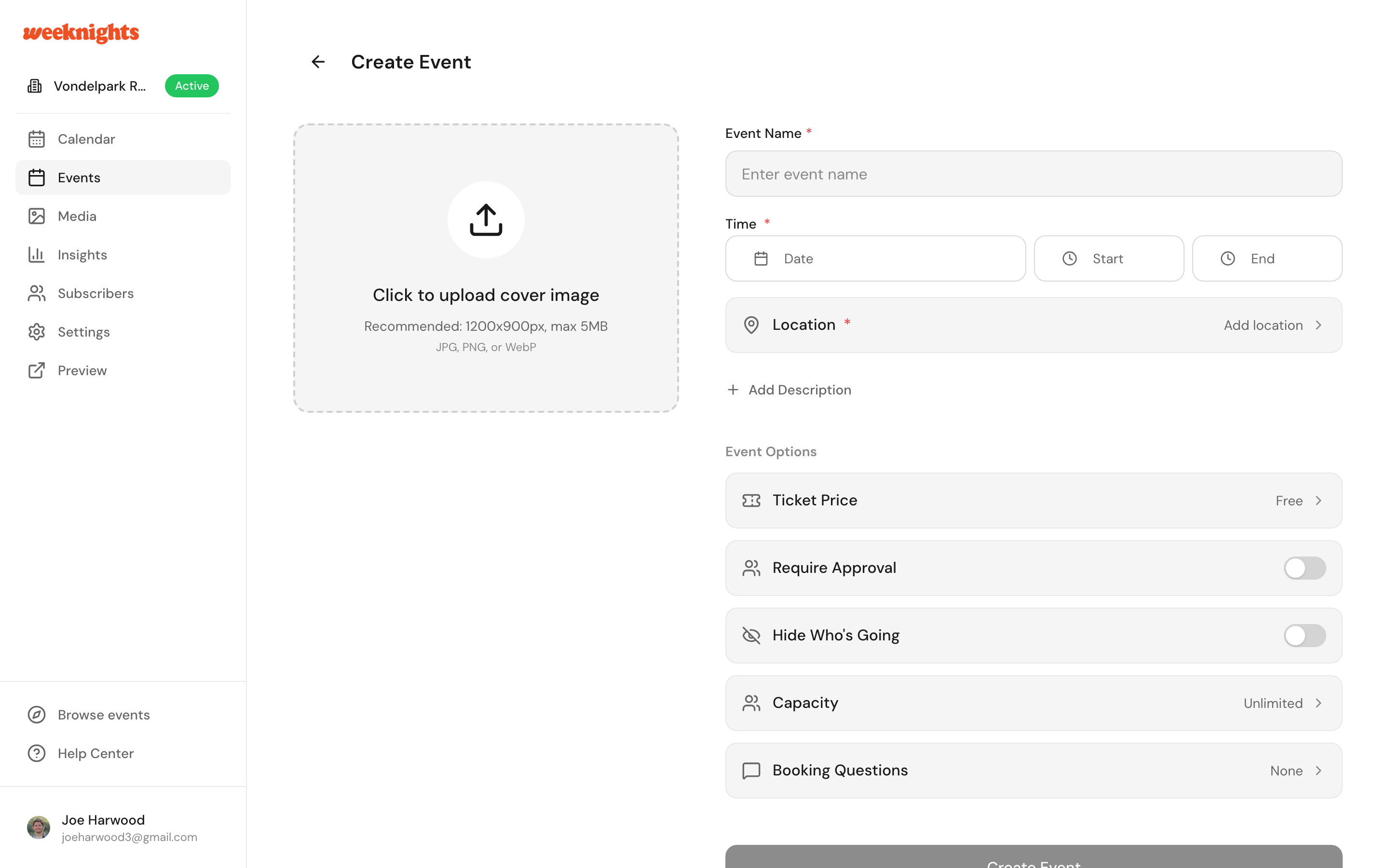
Event details
Title
Choose a clear, descriptive title. Good examples:
- "Wine Tasting: Natural Wines of Portugal"
- "Morning Run Club - Vondelpark"
- "Book Club: January Meeting"
Date and time
Set when your event takes place:
- Date - When the event happens
- Start time - When it begins
- End time (optional) - When it ends
Location
Enter the venue address. You can also add specific instructions like "Ring the bell for apartment 3B" in the description.
Description
Explain what attendees can expect:
- What will happen at the event?
- What should people bring?
- Any requirements or things to know?
Cover image
Upload an eye-catching image for your event. This appears on the event page and in listings.
Tickets and pricing
Free events
Toggle "Free event" if you're not charging. People can RSVP without payment.
Paid events
Set a ticket price:
- Enter the price in euros
- Minimum price is €3.00
- You'll need to connect Stripe to receive payments (see Setting up Stripe)
Capacity
Set how many people can attend. Once capacity is reached, the event shows as sold out and a waitlist opens - people can join it and are notified automatically when a spot frees up.
Approval mode
Want to review attendees before they can join? Enable Approval required to:
- Review each ticket request
- Approve or reject requests
- Build a curated community
Learn more: How approval mode works
Publishing your event
When you're ready, click Publish. Your event will appear:
- On your club page
- In the Weeknights events listing
- In relevant category pages
After publishing
You can still edit your event after publishing:
- Update details like description or location
- Change capacity
- View and manage attendees
Next steps
- Approval mode - Review attendees before they book
- Managing your guest list - View and manage attendees