
Messaging your guests
Last updated 12 October 2026
Send a quick update to the people coming to your event: a change of meeting point, what to bring, or a reminder the day before.
Sending a message
- Go to Events and click the event
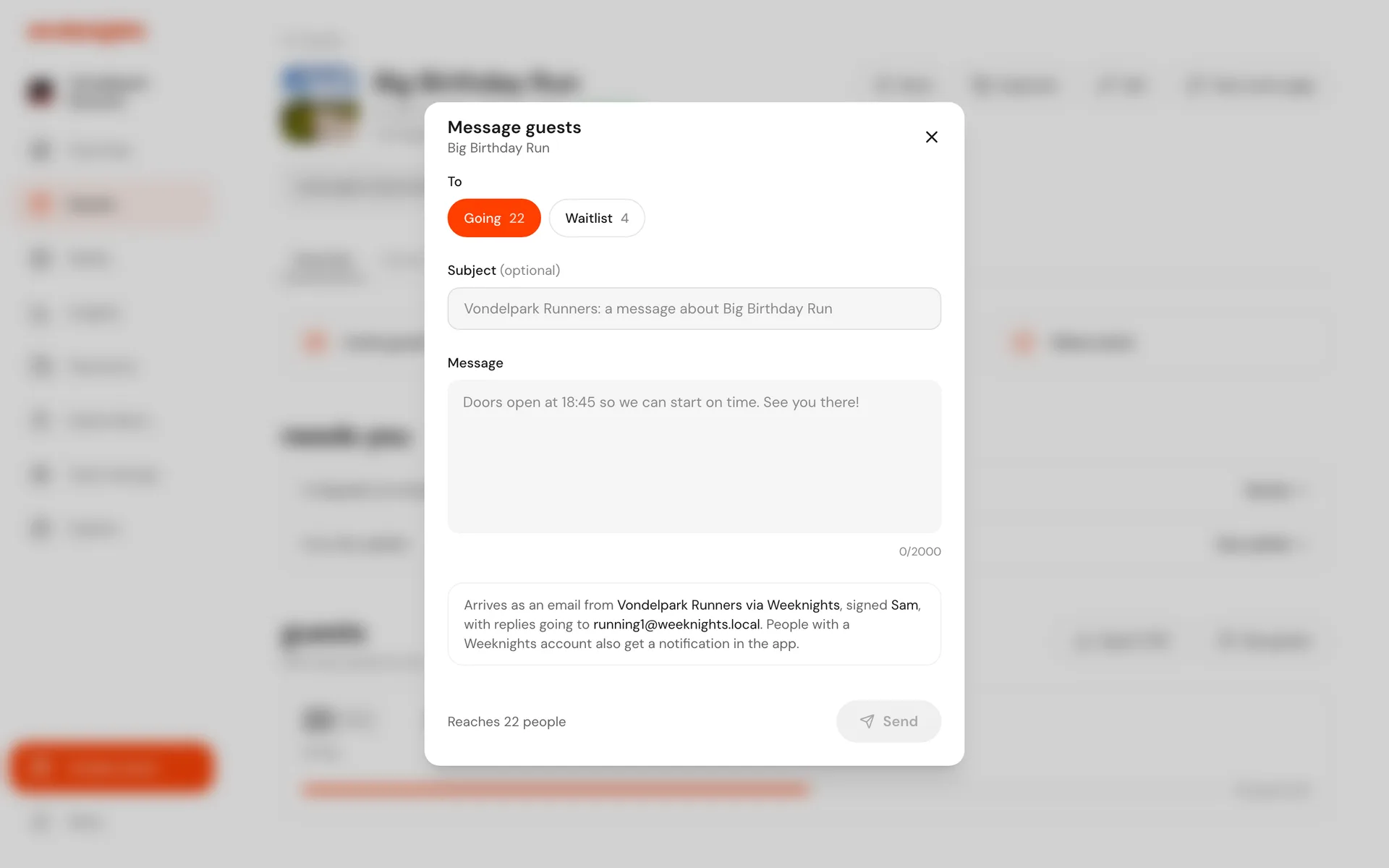
- On Overview, click Message guests
- Under To, choose Going, Waitlist or both. Each shows how many people it reaches.
- Add a Subject if you like. If you leave it empty, it reads "Your club: a message about Your event".
- Write your Message (up to 2,000 characters) and click Send
The bottom of the dialog shows how many people it reaches before you send.
What your guests get
- An email from "Your club via Weeknights", signed with your first name
- A notification in the app, for people with a Weeknights account
Replies go to your club's contact email. Add or change it under Club settings, in Contact & social. See Your club page.
Seeing what you've sent
Sent messages are listed under messages on the event's Overview, newest first.
Tips
- Keep it short and put the important part first
- For a change of date, time or place, edit the event instead. Guests with a ticket are told about the change automatically.
- To reach people who haven't booked yet, use Invite guests. See Inviting people.